MintEncoder User Guide
The MintEncoder User Guide provides installation, configuration and operational guidance for every area of the application. Use the navigation menu or the Help icon within MintEncoder to jump directly to the relevant section.
System Requirements
-
Minimum Requirements
Microsoft Windows 10 (64 bit)
250 MB of available disk space -
Internet Connectivity
MintEncoder does not require an internet connection for normal day-to-day operation. To maintain full functionality and check for updates, the application must connect to the internet at least once every 30 days.
Installation
-
Download the installer from the Downloads page.
-
Verify the SHA256 checksum against the value published on that page.
-
Run the installer and launch MintEncoder.
Before activating a licence, MintEncoder displays the End User Licence Agreement (EULA) for acceptance. The EULA is shown only once during activation and is not displayed again afterwards.
Select I Agree to continue. If the EULA window is closed or Decline is selected, MintEncoder will exit without completing activation. Reopen MintEncoder and repeat the activation process.
Windows Access
MintEncoder creates a local Windows group called MintEncoder Users during installation. The account that runs the installer is automatically added to this group.
Only members of the MintEncoder Users group and Windows administrators can access MintEncoder data and licensing information.
Adding Additional Users
To allow another Windows user to access MintEncoder on the same computer:
-
01Open Computer Management.
-
02Select Local Users and Groups > Groups.
-
03Open MintEncoder Users.
-
04Add the required Windows user account.
-
05Sign out of Windows and sign back in.

Tip:
Changes to Windows group membership do not take effect until the user signs out and signs back in.
Microsoft Edge WebView2 Runtime
MintEncoder uses the Microsoft Edge WebView2 Runtime for the Email Template Editor and Release Notes Editor. The WebView2 Runtime is included with most Windows 10 and Windows 11 installations. If it is not available, MintEncoder displays a link to download and install it directly from Microsoft.
The WebView2 Runtime provides the browser components used by the Email Template Editor and Release Notes Editor.
30 Day Free Trial
MintEncoder is available as a free trial download. Installation does not activate the application. Activation requires the current trial licence key, published separately on the Downloads page. Trial licence keys are typically valid for 30 days from the date of publication. Enter the trial licence key when the Activation screen is displayed.
A trial licence can be activated only once per database. After a trial licence has been activated, entering a different trial licence key on the same database is not possible. To activate another trial licence, the existing database must be deleted and a new database created.
How to Start Another 30-Day Trial
MintEncoder does not need to be reinstalled. Delete the database and licence files, then start MintEncoder to create a new empty database automatically.
-
Delete the Database
C:\ProgramData\MintEncoder\Data\MintEncoder.db
-
Delete the database key
C:\ProgramData\MintEncoder\Data\MintEncoder.dbkey
-
Delete the license key
C:\ProgramData\MintEncoder\mintencoder.lic
Once these files have been deleted, download the latest trial licence key from the Downloads page. Installing a newer version of MintEncoder does not affect the existing database. If a future release affects the existing database, this will be clearly communicated during installation.
When a Trial Licence Expires
When a MintEncoder trial licence expires, MintEncoder continues to open normally and all existing data remains available.
-
Products
-
Licence Types
-
Licence Details
-
Certificates
-
Signing Keys
-
Release History
-
Audit Log entries
No existing data is deleted or hidden when a trial licence expires.
What Changes After Trial Expiry?
MintEncoder enters view-only mode.
New data cannot be created or modified until a valid Subscription Licence is installed.
The following areas become view-only:
-
Product Manager
-
Email Settings
-
Licence Types
-
Release History
-
Key Manager
-
Licence Details
-
Settings
The following features remain available:
-
Backup MintEncoder
-
View Backup Password
Available Options
Enter a Subscription Licence Key
Start with a New Database

Starting another trial requires deleting the existing database, database key and licence key files.
Deleting these files permanently removes all products, licences, certificates, release history and audit records stored in that database.
This action cannot be undone.
The Dashboard
After activation, MintEncoder opens to the Dashboard. The Dashboard provides access to the application’s core functions and presents a summary of product and licence activity.
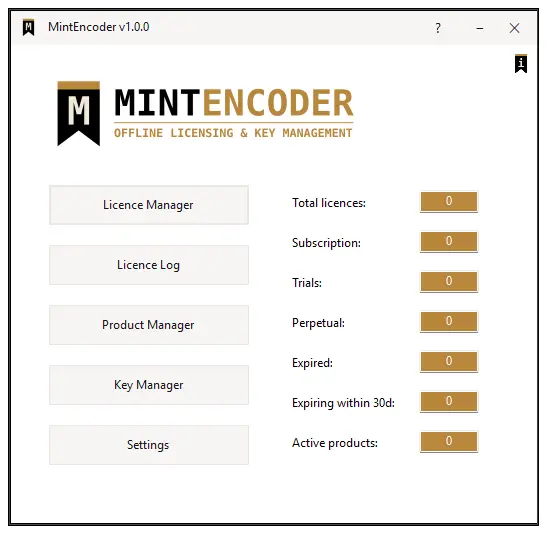
Navigation Panel
The Navigation Panel provides access to MintEncoder’s five core functions.
-
Licence Manager
-
Licence Log
-
Product Manager
-
Key Manager
-
Settings
Tip:
Product Manager and Settings are available immediately. The remaining functions become available automatically when the required products, signing keys, or licences have been created.
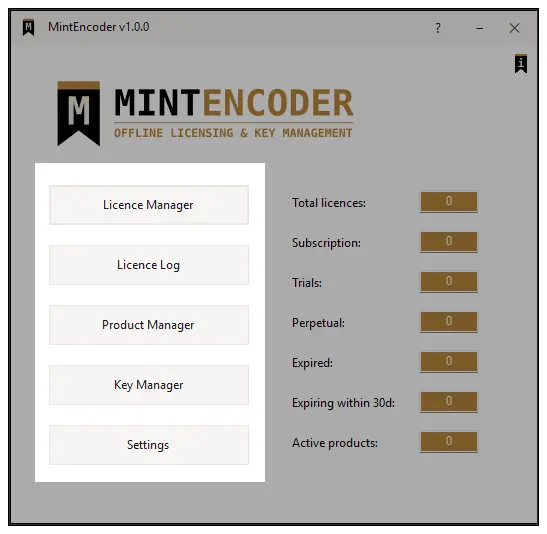
Licence Summary
The Licence Summary provides an overview of:
-
Total Licences
-
Subsription Licences
-
Trial Licences
-
Perpetual Licences
-
Expired Licences
-
Licences Expiring Within 30 Days
-
Active Products
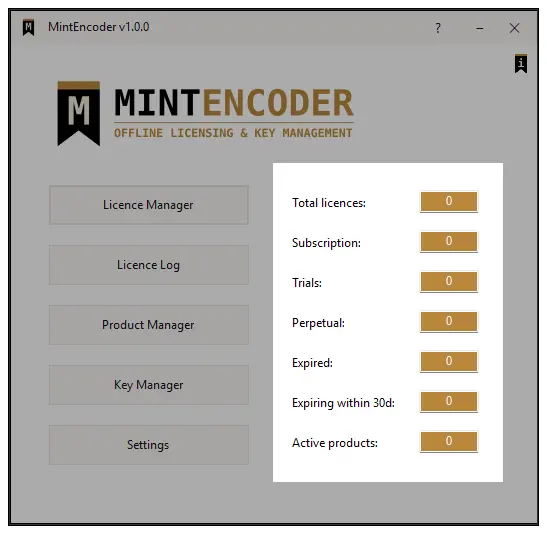
Product Manager
Product Manager is used to create and manage products before licences can be issued.
Throughout this guide, Trust Armory is used to demonstrate product configuration, licence generation and software licensing workflows. Trust Armory and MintEncoder are products developed by TechDirectStudio. Trust Armory is a WordPress plugin that uses a domain-based licensing model, meaning each licence is valid only for the domain specified in the licence.
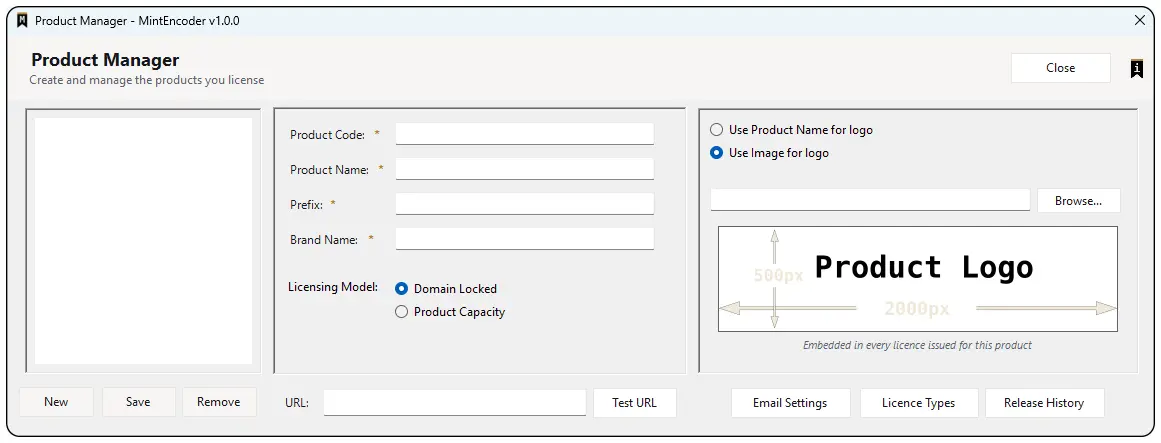
Product Details
Contains:
-
Product Code
-
Product Name
-
Brand Name
-
Prefix
-
Licensing Model

Product Code & Prefix
The Product Code and Prefix uniquely identify a product and are used when generating licence keys, certificates and activation data.
The Prefix is embedded into every licence generated for the product and is validated during activation. Because it forms part of the product’s identity, the Prefix should not be changed after licences have been issued.
Brand Name
Brand Name is optional.
If left blank, MintEncoder uses the company name configured in Settings > Company.
Specify a Brand Name only when a product is sold under a different name, trading name or client brand.
The Brand Name is used for {BrandName} in Product Email Templates and as the sender name displayed to customers in licence emails.
Licensing Model
-
Domain Locked
Licences are associated with a domain or website.
Designed for websites and web applications.
Licence is valid only for the specified domain.
Customer Domain is required. -
Product Capacity
Licences are issued against a specific Product Capacity.
Designed for desktop applications.
Validates against the configured Product Capacity.
Product URL
The Product URL associates a domain-locked product with its website domain.
The Product URL field accepts only characters valid for a domain name and automatically converts entries to lowercase. Characters such as colon (:) and forward slash (/) are not permitted, preventing the entry of fully qualified URLs.
Use the Test URL button to verify that the domain is reachable and correctly configured.

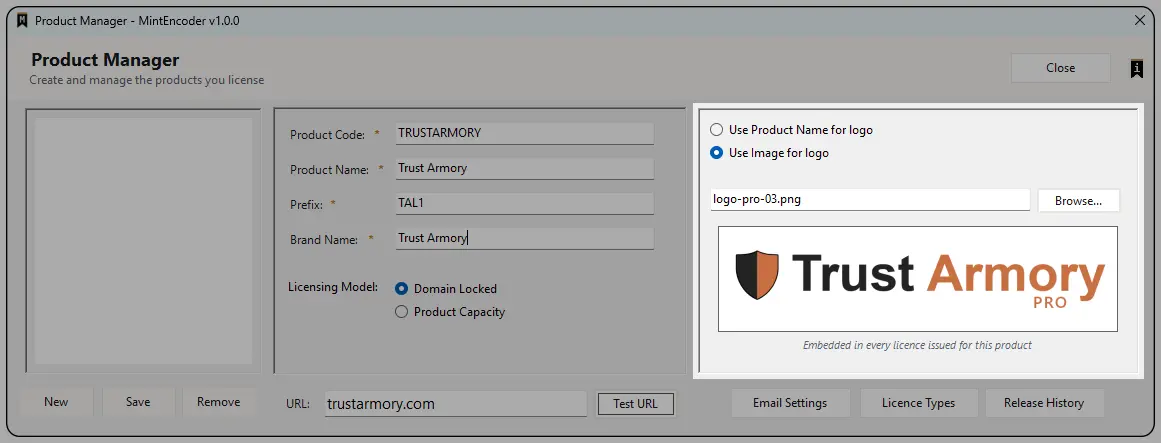
Branding Using Text
If a product logo is not available, text can be used instead. The displayed text is taken from the Product Name field and can be customised using the available font controls.

Branding Using a Logo
The Branding section allows a product-specific logo to be assigned. If no logo is configured, the default placeholder image is displayed.
For best results, use an image approximately 2000 × 500 pixels.
The configured logo is displayed throughout MintEncoder, including:
-
The Licence Manager Banner
This is a visual prompt to confirm that the correct product is being selected.
-
PDF Certificates
This is the logo embedded into licence certificates generated by MintEncoder.
Tip:
The Browse button opens the default image folder (MintEncoder\Images). The default image folder can be changed via the Settings → System Tab.
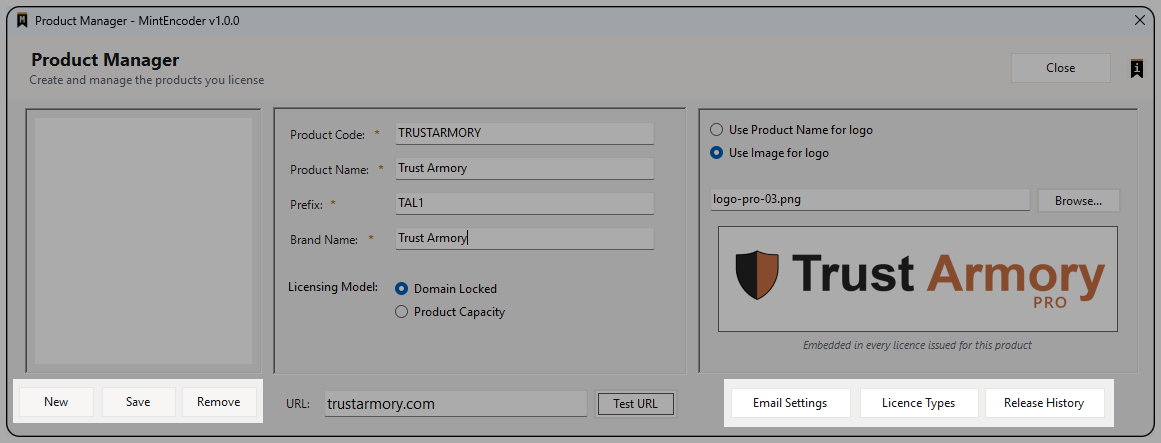
Action Buttons
The Product Actions section contains the controls used to create, update and remove products.
-
New
Clears the current form and prepares the Product Manager for the creation of a new product.
-
Save
Saves the current product and any changes made to its configuration.
-
Remove
Removes the product from active use while preserving all associated licence and historical data.
Removing a product does not delete the product or its associated data. All licences, historical records and product information are preserved.
-
Email Settings
Opens the product's email configuration settings, where Support and Licensing mailboxes can be configured, licence certificate delivery can be automated, and the licence email template can be customised. See More
-
Licence Types
Opens the Licence Types editor for the selected product. Licence Types define how licences behave when generated and validated. A Licence Type can represent any licensing model required by the product owner. See More
-
Release History
Opens the Release History editor for the selected product. The Release History allows version information and release notes to be maintained for a product. This information can be referenced during licence generation and provides a record of product releases over time. See More
Email Settings
-
Primary Email
Used to send licence certificates and licence-related communications to customers. The Primary Email tab includes an option to automatically email licence certificates after licence generation.
-
Fallback Email
Optional backup mailbox used when the Primary Email mailbox is unavailable or unable to send email.
-
SMTP Configuration
Enter the mailbox address and SMTP settings supplied by your email provider, including the server name, port, username and password.
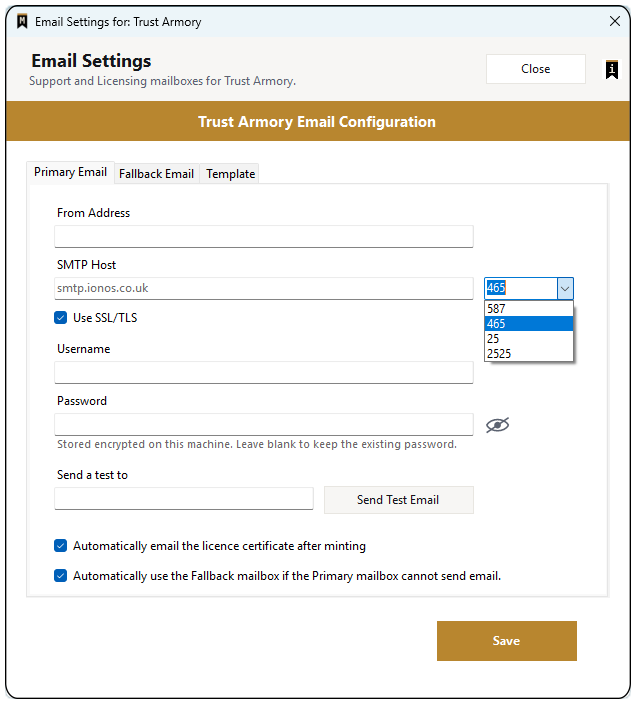
For security, mailbox passwords are stored in encrypted form. Passwords may be viewed temporarily using the eye icon beside the password field and can be updated at any time.
Use Send Test Email to verify that the mailbox configuration is functioning correctly before relying on it.
Email Troubleshooting
-
Cannot Send a Licence Email
If a licence email cannot be sent, MintEncoder displays a plain-English explanation of what went wrong and what to do next.
For example:
The customer's email address doesn't seem to exist. Check the spelling of the address, especially the part after the @ symbol, correct it in Licence Details, then use Resend Email.
The email server's response is displayed underneath as technical detail for troubleshooting purposes.
Both the plain-English explanation and the email server's response are recorded in the Audit Log. -
Resending a Licence Certificate
If a licence certificate is not received, open the Licence Details window from the Licence Log and select Resend Email. MintEncoder generates a new PDF certificate and attempts delivery using the same mailbox selection logic as a normal licence generation.
-
Fallback Mailbox
If the Primary Email mailbox is unavailable or email delivery fails, MintEncoder can automatically resend the email using the configured Fallback Email mailbox. This behaviour is enabled by default and can be disabled if automatic failover is not required.
Product Email Template
-
{CustomerName}
-
{LicenceId}
-
{ProductName}
-
{ProductVersion}
-
{Domain}
-
{WebsiteUrl}
-
{BrandName}
-
{LicenceKey}
-
{CompanyName}
-
{CompanyWebsite}
-
{CompanySupportEmail}
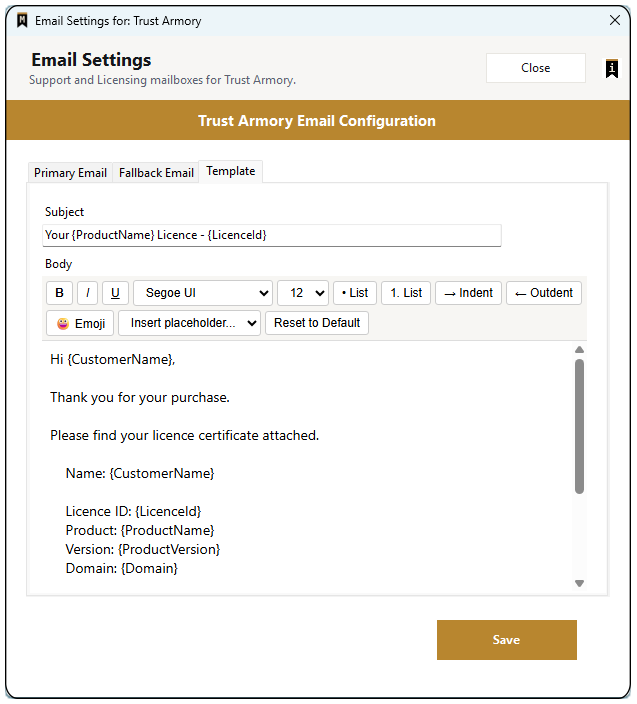
{BrandName} is the product’s Brand Name. If the Brand Name is blank, MintEncoder uses the Company Name instead.

If you want to return to the standard MintEncoder wording, click Reset to Default on the Template tab.
If the Primary Email mailbox has not been configured, MintEncoder will still create the licence successfully. The licence certificate will not be emailed automatically and must be distributed manually.
Email delivery only requires the Primary Email mailbox to be configured. The Fallback Email mailbox can be configured later if automatic failover is not required.
Email templates are managed entirely through the Template tab. Changes are saved for the selected product, and the Reset to Default button restores the original MintEncoder template.
Licence Types
Licence Types define how licences behave when generated and validated. Each product can have one or more Licence Types, allowing different licensing models to be offered for the same product.
The Licence Type name is fully configurable and is displayed throughout MintEncoder wherever licence types are referenced.

Licence Type Options
-
Requires Expiry Date
Requires an expiry date to be specified when a licence is generated. Licences using this type cannot be issued as perpetual licences.
-
Counts as a Trial
Treats licences generated using this Licence Type as Trial licences for Dashboard statistics, reporting and licence summaries.
-
Always Unlimited Product Capacity
Available only when Counts as a Trial is enabled.
Trial licences generated using this Licence Type ignore Product Capacity restrictions and always allow unlimited capacity. -
Enforce Domain Restriction
Prevents multiple licences of this Licence Type from being issued to the same domain.
If a licence of this type already exists for a domain, MintEncoder blocks the creation of another licence for that same domain.
This restriction can be overridden during licence generation using Override Trial Restriction. -
Display Order
Controls how Licence Types are displayed throughout MintEncoder. Lower values are displayed first.
Tip:
Licence Types can be edited or removed at any time. Changes affect licences generated in the future and do not alter licences that have already been issued.
Release History
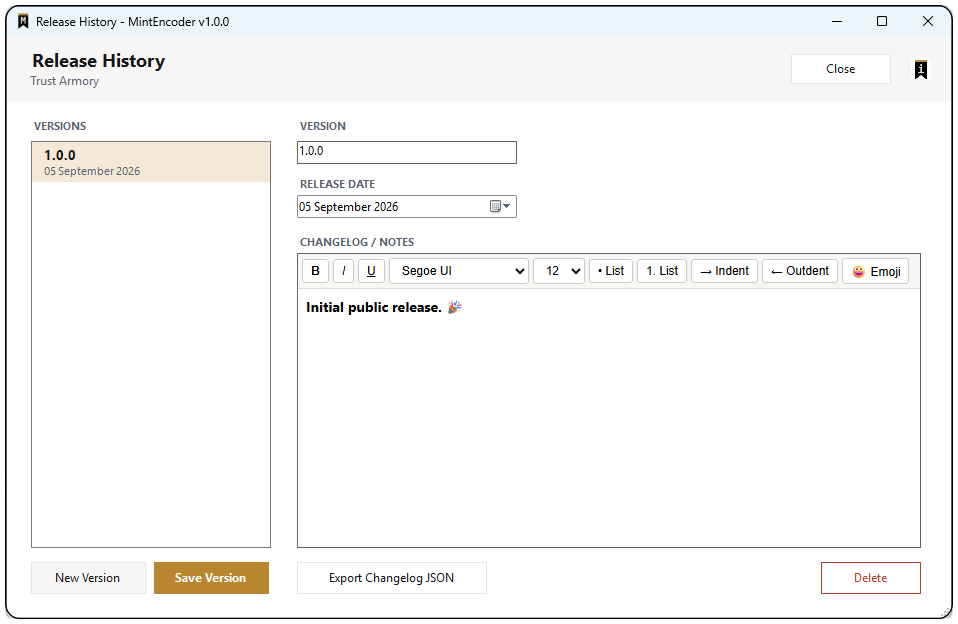
The Release History window provides a central record of product versions and release notes for the selected product.
Each release entry consists of:
-
Version
The product version number.
-
Release Date
The date the version was released.
-
Changelog / Notes
Details of new features, improvements, bug fixes and other release information.
Version Numbering
-
Major Release
The first digit increments for significant new functionality or major architectural changes.
Example: 1.6.3 → 2.0.0 -
Minor Release
The second digit increments for new features and enhancements while maintaining compatibility.
Example: 1.6.3 → 1.7.0 -
Patch Release
The third digit increments for bug fixes and minor corrections.
Example: 1.6.3 → 1.6.4
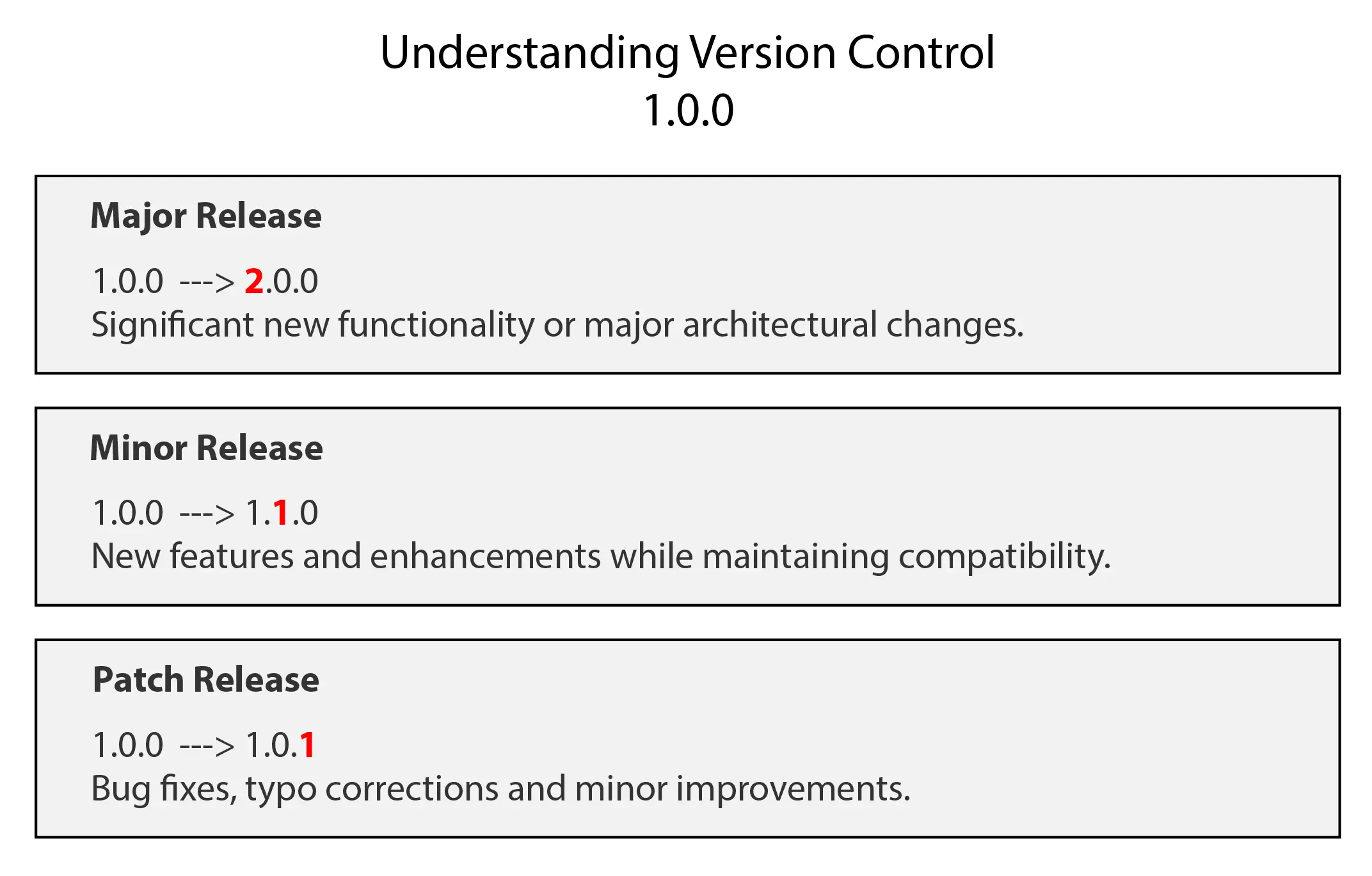
Consistent version numbering provides a clear record of product development and helps customers identify the changes included in each release.
Release Notes and Changelog
Release notes can be used to record new features, improvements, bug fixes and other version-specific information.
Release entries are displayed with the most recent version at the top of the list. When generating a licence, the latest version becomes the default selection in Licence Manager.
The Export Changelog button exports all release entries for the selected product to a single JSON file.
Deleting a release entry is recorded in the Audit Log, providing a permanent record of the action and the version that was removed.

Key Manager
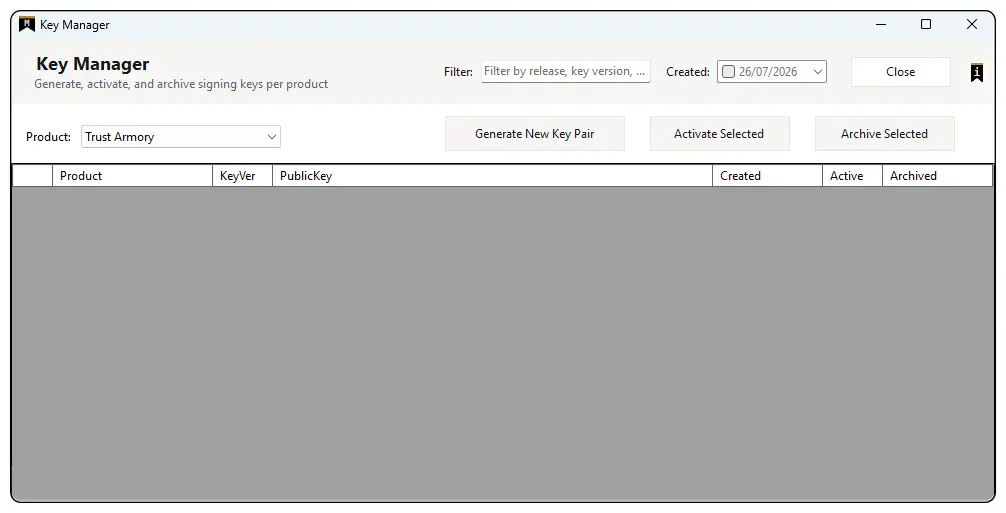
The Key Manager is used to generate, activate and archive cryptographic signing keys for products. All licences issued by MintEncoder are signed using the active signing key pair associated with the selected product.
Tip:
If Key Manager is disabled, it is becasue there are no active products in Product Manager.
Product Selector
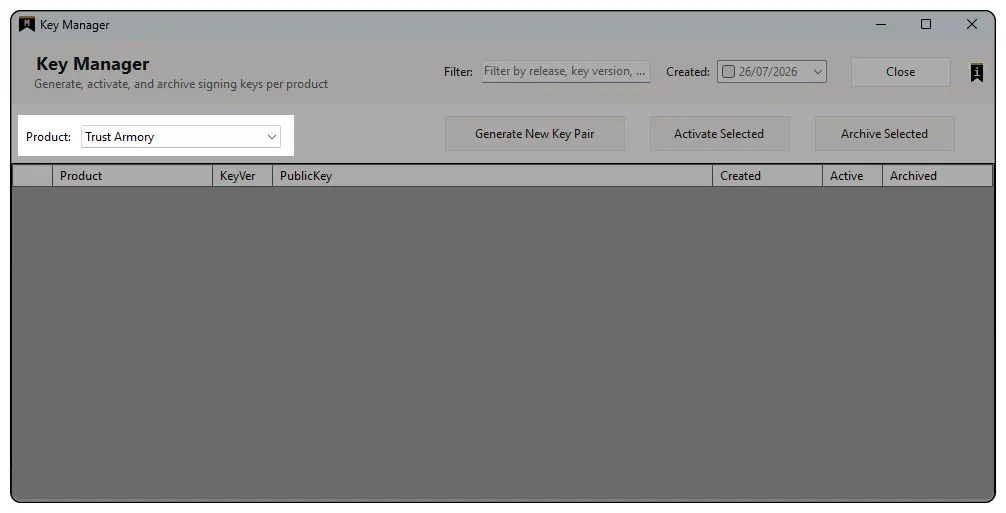
The Product Selector lists all active products and determines which product’s signing keys are displayed and managed.
The selected product determines which signing keys are displayed and which product the action buttons operate against.
Tip:
A product must exist before signing keys can be created. Key Manager is unavailable when no active products exist.
Filters
Available filters include:
-
Text search
Searches any part of the Public Key value.
-
Release
-
Key Version
-
Creation Date

Tip:
Action Buttons
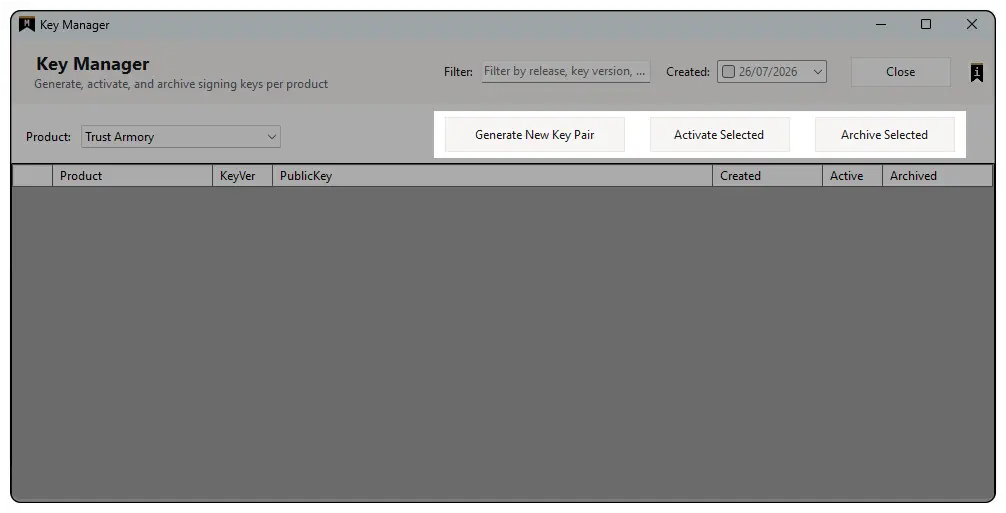
-
Generate New Key Pair
Creates a new public/private key pair for the selected product. The newly generated key pair becomes available for activation.
-
Activate / Archive Selected
Activates or archives the selected signing key pair as required.
If the selected key pair is not active, it becomes the active signing key pair for the product. Only one signing key pair can be active for a product at any time.
The active signing key pair cannot be archived. Activate another key pair first, then archive the previous one.
Archived signing key pairs remain valid for previously issued licences but cannot be used to sign new licences. -
Show Archived Keys
Archived key pairs are hidden by default. Enable Show Archived Keys to display archived and superseded signing keys.
Archived rows are highlighted red when shown. Reactivating an archived key clears the red highlighting.
Recovery Key Required
Tip:
Signing Key Management
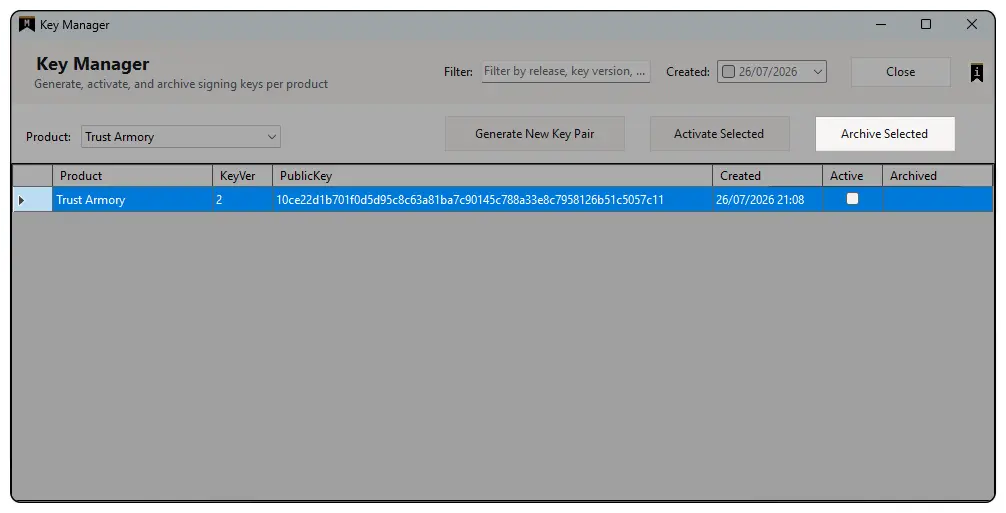
After the Recovery Key has been exported, return to Key Manager where the newly created signing key pair will be available for activation. Select the key pair and click Activate Selected. Once activated, all licences generated for the selected product will be signed using that key pair.
Right-click the active signing key pair and select Copy Public Key. The public key can then be embedded within the software or plugin that will validate licences generated by MintEncoder.
Tip:
Licence Manager
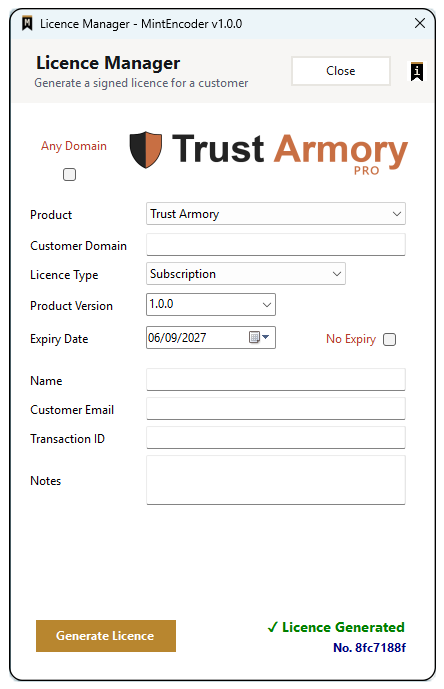
Most of the information entered in Licence Manager is included within the generated licence certificate and associated licence record.
The Product
The Product dropdown list contains all active products. Selecting a product automatically loads the associated signing key, Product Logo and Product Versions. The most recent version is selected by default.
The logo displayed in Licence Manager is configured in Product Manager. If a custom logo has been assigned, it is displayed automatically. If the product uses text-based branding instead, MintEncoder generates a substitute image using the product’s branding settings.
The Licence Model
For Domain-Based products, licences validate only against the domain specified in the Customer Domain field. Selecting Any Domain disables domain validation and automatically disables the Customer Domain field.
Domain-Based licences are intended to operate against a single customer domain. If a customer requires licensing for multiple domains, separate licences should normally be issued for each domain.
Because issued licences cannot be edited retrospectively, care should be taken to enter the correct domain before generating the licence.
Licence Type
-
An expiry date is required
-
A licence can be perpetual
-
Duplicate licences can be issued for the same domain
Perpetual Licences
Selecting No Expiry creates a perpetual licence and ignores the Expiry Date field.
Once issued, the expiry behaviour of a licence cannot be changed retrospectively.
If a perpetual licence needs to be retired, a future product release must stop trusting the issuing public key.
Generate Licence
-
Recorded in Licence Log
Every generated licence receives a unique Licence Number and is permanently recorded in Licence Log for future reference, support, renewal, and auditing purposes.
-
Licence Email and PDF Certificate
When a licence is generated, MintEncoder creates a licence email and attaches a PDF certificate.
The licence email contains the full licence key as a single line, ready to copy and paste into the licensed product.
The PDF certificate contains the same customer, product, licence and subscription information as the licence email and can be retained for record-keeping purposes.
Certificates are generated on demand and attached to the email. Once sent, the certificate is not retained by MintEncoder and can be regenerated at any time from Licence Log. -
Update Audit Log
Licence generation is recorded in the Audit Log.
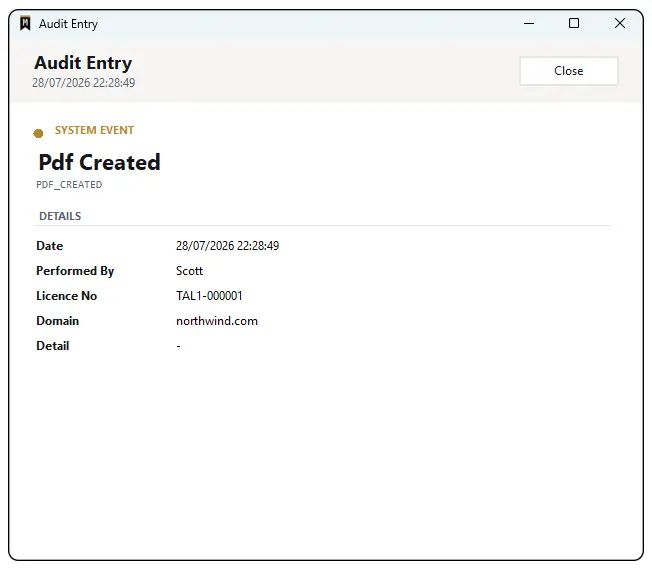
After the licence is generated, the form is reset and a confirmation message is displayed at the bottom of the window. The message contains a direct link to the corresponding Licence Log record.
Licence Log records issued licences. Audit Log records actions performed within MintEncoder, including licence generation.
Licence Log
The Licence Log is a complete, searchable record of every licence issued by MintEncoder and is usually the first place to look when reviewing licence activity or assisting a customer.
The Licence Log displays key licence information including Licence Number, Customer, Domain, Product, Licence Type, Product Capacity, Version, Expiry Date, Status and Created By.

Licence Number
-
In the Licence Log
-
On the licence certificate
-
In the licence email
-
In CSV exports
Double-clicking on a licence entry will open the full licence details for that particular licence.
Search Filter
Any column can be sorted by clicking its header. Click the same heading again to reverse the sort order.
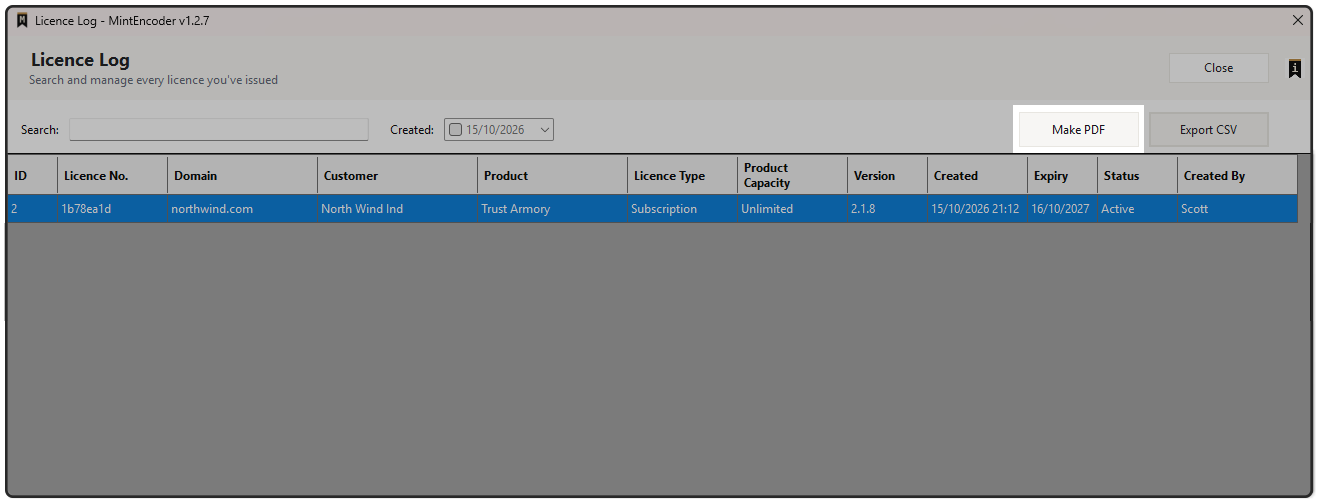
Use the Search box to filter licences as you type. The search matches across multiple licence fields, making it easy to locate specific records. To filter licences created on a particular date, enable the Created filter and select the required date.

PDF Certificates
PDF certificates are generated on demand and are not stored permanently.
Each certificate is generated using the information currently recorded in Licence Log, ensuring that regenerated certificates always reflect the latest recorded licence data.
Certificate Layout
-
The product logo and the title Licence Certificate
-
Licence Number, product, version and licence type
-
Customer Information and Licence Information
-
The licence key
-
Cryptography Confirmation
A statement confirming that the licence key is digitally signed and verifiable using Ed25519 cryptography.
-
Product Support Information
Including the configured product website.
-
The certificate generation date and time
-
Company Branding
Configured in Settings > Company, including the company logo, website and support email where configured.


If a product logo is not configured, the product name is displayed instead.
If a company logo is not configured, the company name is displayed in the footer.
Any fields left blank in Settings > Company are omitted from the certificate.
Tip:
%Temp%\MintEncoder. This folder is purged when MintEncoder is closed. Files copied or moved to another location are outside the control of MintEncoder.Export CSV
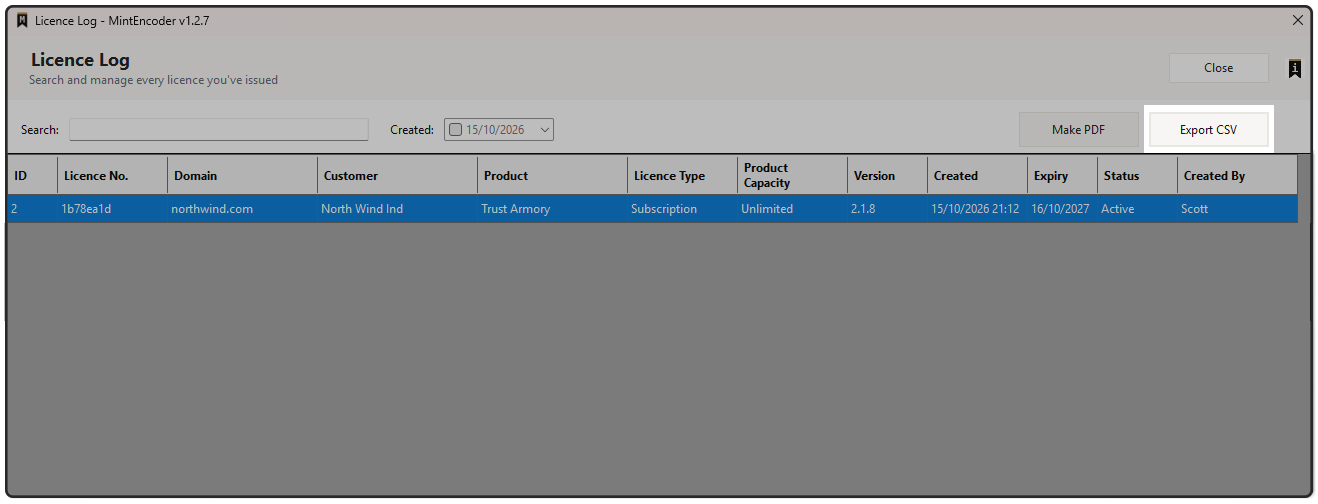
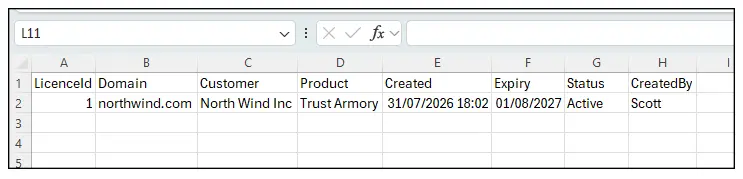
The Export CSV action opens a date range selector. Select a From and To date to define the export range.
Once confirmed, MintEncoder exports all licence records within the selected date range. If a value has been entered in the Search box, only matching records are exported. The current sort order is preserved in the export.
Tip:
Generated files are stored temporarily in %Temp%\MintEncoder. This folder is purged when MintEncoder is closed. Files copied or moved to another location are outside the control of MintEncoder.
Licence Details
-
Licence Log
Double-click a licence entry to open the corresponding licence details.
-
Licence Manager
Immediately after generating a licence, click the Licence Generated status link displayed in the bottom-right corner of the Licence Manager window.
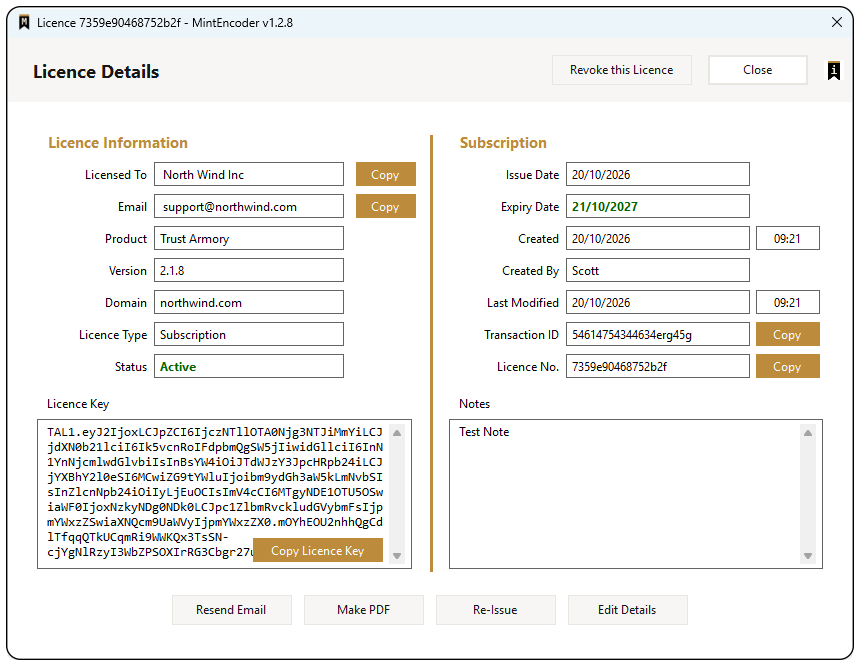
Licence Details allows you to:
-
View the complete licence record
-
Copy customer, transaction and licence information
-
Copy the licence key
-
Generate a PDF certificate
-
Resend the licence certificate email
-
Edit the customer email address, Transaction ID and notes
-
Re-issue a licence with corrections
Licence Status
The Status field is shown in green when a licence is Active, and in red when it is Revoked or Replaced.
The Expiry Date is shown in red once it has passed.
Edit Details
Click Edit Details to update:
-
Customer Email Address
-
Transaction ID
-
Notes
Click Save Details to keep the changes, or Cancel Edit to discard them.
Every saved change is recorded in the Audit Log, including the previous and new values.
Re-Issue
Replacing the Existing Licence
Re-Issue Availability
Re-Issue is available in active Trial, Subscription and Pro editions.
When a trial licence has expired, Re-Issue is unavailable because licence generation is disabled until a Subscription Licence is installed.
Settings
The Settings window contains two different protection mechanisms:
-
Backup & Auto Backup
Backup and Auto Backup protect MintEncoder data, including products, licences, signing keys and configuration settings.
-
Recovery
Recovery protects the MintEncoder signing engine. Recovery Keys are used to recover signing keys that become inaccessible due to data corruption, hardware failure, operating system reinstallation or migration to another computer.
This distinction is important:
-
Backup & Restore recover MintEncoder data and configuration.
-
Recovery Keys recover signing keys.
A complete recovery strategy requires both.
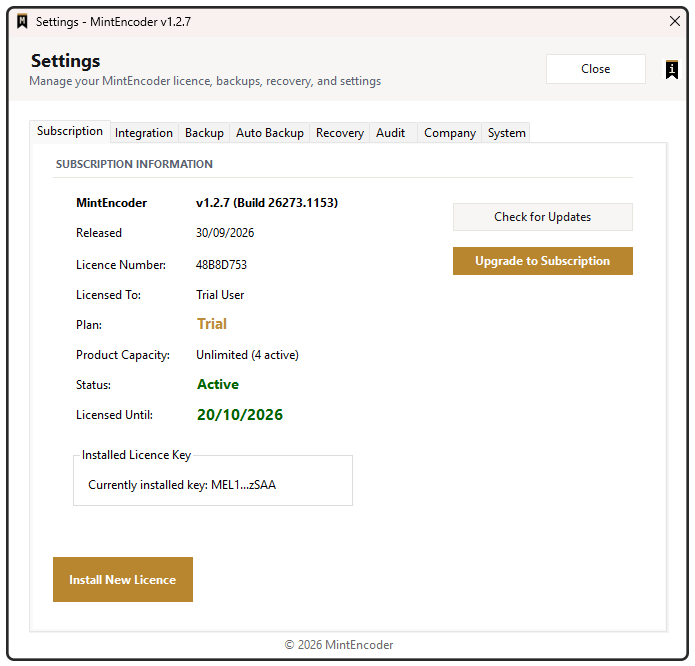
Subscription
-
Check for Updates
Compares the installed version against the latest version published on mintencoder.com.
-
Install New Licence
Aallows a replacement licence key to be installed at any time, for example when upgrading, renewing or replacing a subscription.
-
Licence Check-In
MintEncoder checks in when it starts and every 6 hours while it remains open. Each check-in confirms that the licence is still valid and checks for available updates.
This allows licence changes, renewals, upgrades and revocations to take effect automatically without requiring MintEncoder to be restarted.
If MintEncoder cannot complete a successful check-in for 30 days, it enters Restricted Mode. Existing data remains available, but licence generation, product management and signing key management become unavailable until a successful check-in is completed.
As soon as a successful check-in occurs, full functionality is restored. There is no need to restart MintEncoder.
Installing a Licence Key
Integration
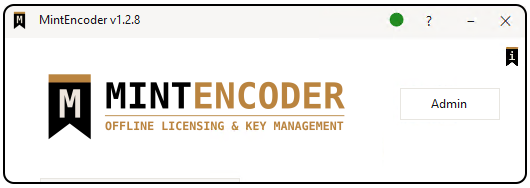
Connected (green)
Unlicenced: NoLicenced: Yes
MintEncoder successfully connected to the website using the configured Website URL and API Key during the most recent connection check.
Licence revocation services are available.
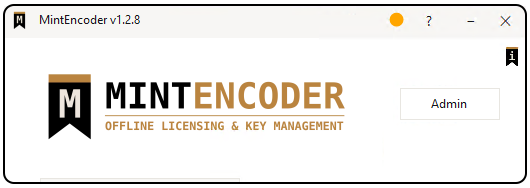
Issues Detected (amber)
Unlicenced: NoLicenced: Yes
One or more recent connection checks have failed.
MintEncoder continues to retry the connection every minute. If the connection remains unavailable beyond the configured Alert Threshold, the status changes to Offline.
Offline (red)
Unlicenced: NoLicenced: Yes
The website has been unreachable for longer than the configured Alert Threshold.
If a Notification Email is configured, MintEncoder sends an alert email and repeats it once per threshold period until the connection is restored.
Licence revocation services are unavailable while the website remains offline.

-
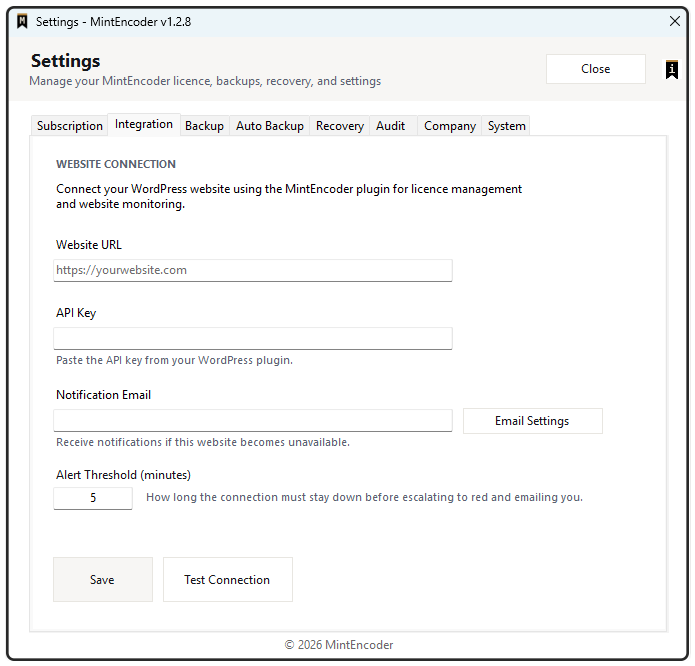
Website URL
The address of the WordPress website, for example:
https://yourwebsite.com
MintEncoder uses this address for licence revocation and connection monitoring. -
API Key
The API key generated by the MintEncoder Pro plugin.
Copy the API key from the plugin settings and paste it here.
The API key is stored encrypted on the local computer. -
Notification Email
Optional.
Used when the website cannot be reached for longer than the configured Alert Threshold.
Click Email Settings to configure the mailbox used to send these notifications.
This mailbox is independent of each product's licence email settings. -
Alert Threshold (minutes)
Controls how long the website connection must remain unavailable before the Dashboard status changes to Offline and a notification email is sent.
The default value is 5 minutes.
While the website remains unavailable, notifications are repeated once per threshold period. -
Save and Test Connection
Click Save to store the settings.
Click Test Connection to verify that MintEncoder can connect to the website using the configured API key. A successful test reports Connected. If the test fails, MintEncoder displays the reason. -
Features That Use the Integration
The website connection is used by:
-
Revoke this Licence in Licence Details
-
Re-Issue, when the original licence is revoked
-
Customer Data Deletion, which revokes licences before anonymisation
Tip:
If Website URL or API Key is left blank, the Dashboard connection indicator is hidden.
Features that require website communication prompt you to complete Settings > Integration before continuing.
Backup
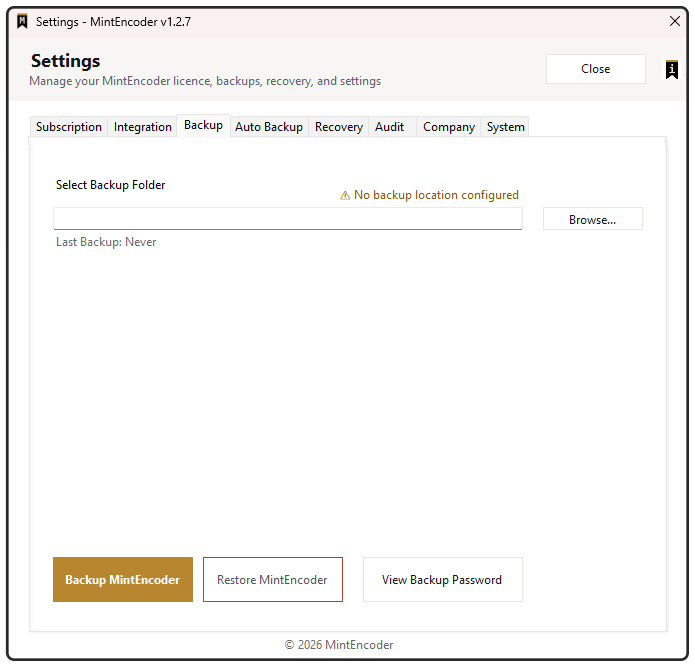
-
Product records
-
Licence records
-
Database files required to restore MintEncoder data
-
The database key
-
The MintEncoder licence key
-
Signing key data (keystore.dat)
-
Backup manifest information
Restore Validation
Important
Auto Backup
-
Auto Backup
Auto Backup supports two independent backup locations:
Daily at a specific time
At a fixed interval (minimum 15 minutes)

-
Backup Locations
Auto Backup supports two independent backup locations:
• AutoBackup A
• AutoBackup B
Using two backup locations provides additional resilience by maintaining separate backup copies.
-
Validation Settings
Each backup database is checked independently using SQLite's built-in integrity check.The timestamps of both backup locations are then compared against each other using the configured Timestamp Buffer to confirm that both locations remain synchronised.
-
Database Integrity Check
The Database Integrity Check indicator displays the result of the most recent database validation.
-
Timestamp Buffer
The Timestamp Buffer defines the maximum allowed difference between the backup timestamps before the locations are reported as out of sync.
Tip:
Recovery
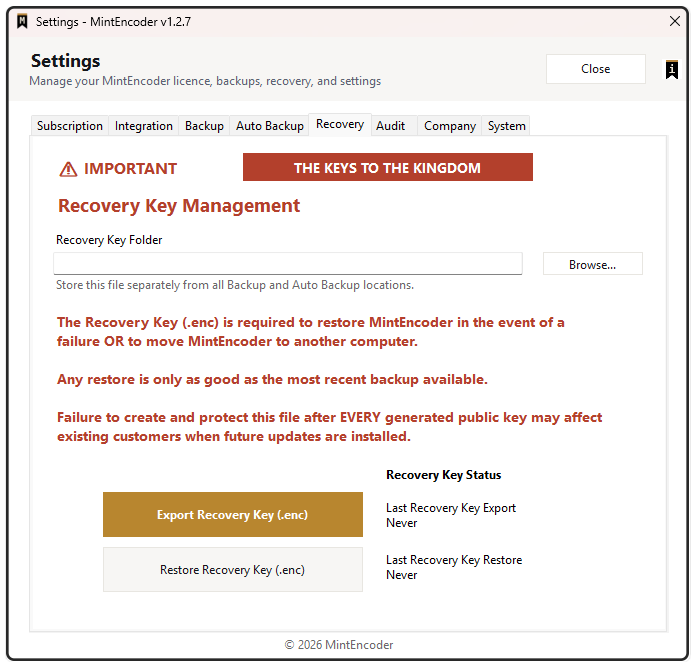
Recovery Keys protect MintEncoder signing keys and should be treated as critical security assets. Recovery Keys are required when recovering signing keys after hardware failure, operating system reinstallation or migration to another computer.
-
Recovery Key Folder
⚠ Store Recovery Keys separately from Backup and Auto Backup locations. A backup and its Recovery Key should never be stored in the same location.
-
Export Recovery Key
Creates an encrypted Recovery Key file used to recover signing keys when normal access is no longer possible.
-
Restore Recovery Key
Restores signing key access from a previously exported Recovery Key.
-
Recovery Key Status
The Recovery Key Status panel records:
• Last Recovery Key Export
• Last Recovery Key Restore
Audit
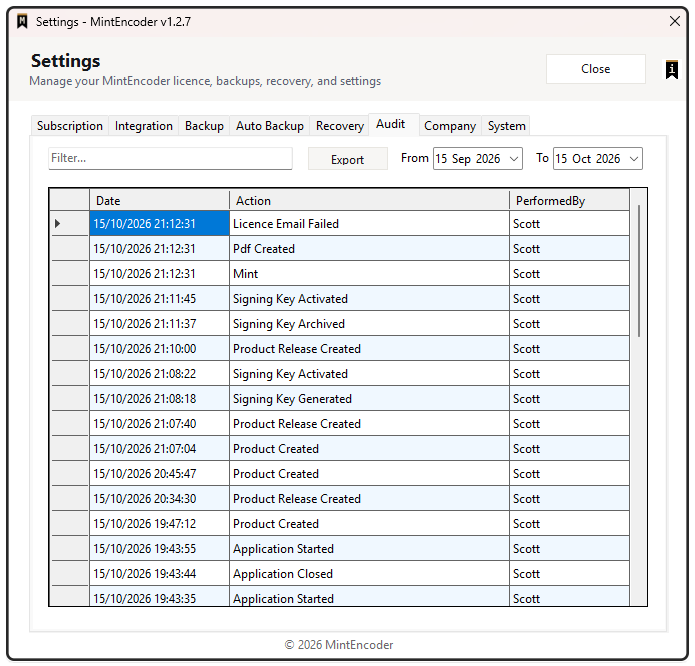
The Audit tab records actions performed within MintEncoder and provides a searchable history of activity across the application.
Common audit events include:
-
Application start and close
-
Product creation and removal
-
Product release creation
-
Signing key generation, activation and archival
-
Licence generation
-
PDF certificate generation
-
Email delivery and delivery failures
-
Backup and recovery operations
-
Administrative actions
Company
-
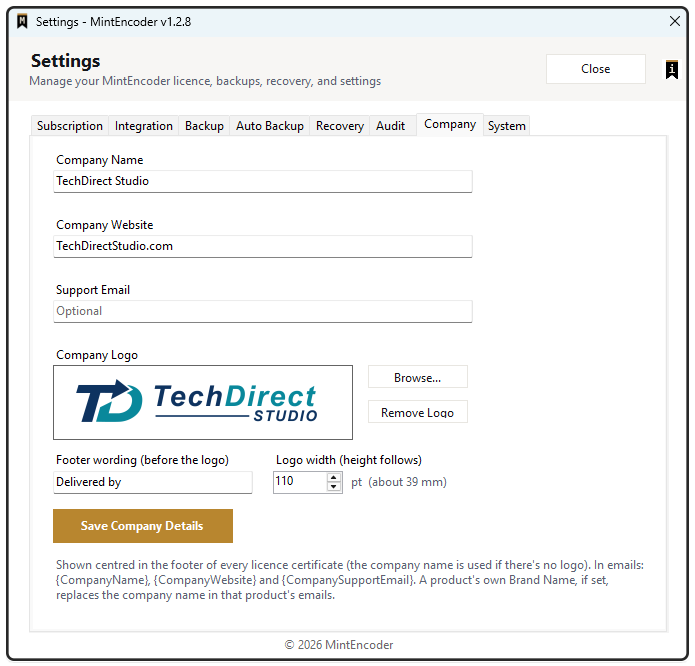
Company Name
Shown in the certificate footer when no company logo is configured and available in email templates as {CompanyName}.
When a product's Brand Name is blank, MintEncoder uses the Company Name instead. -
Company Website
Shown in the certificate footer and available in email templates as {CompanyWebsite}.
https:// is added automatically if omitted.
-
Support Email
Optional. Shown in the certificate footer after the website and available in email templates as {CompanySupportEmail}.
-
Company Logo
Click Browse to select an image (PNG, JPG or BMP).
MintEncoder stores its own copy of the image, so the original file can be moved, renamed or deleted after it has been selected.
Click Remove Logo to display the Company Name instead.
A wide logo generally produces the best results on licence certificates. -
Footer Wording
Text displayed before the company logo on licence certificates.
The default value is Delivered by. Leave the field blank to display only the logo, website and support email. -
Logo Width
Controls the width of the company logo on licence certificates. The height is adjusted automatically to maintain the aspect ratio.
Values between 40 pt and 250 pt are supported. The default value is 110 pt.
Tip:
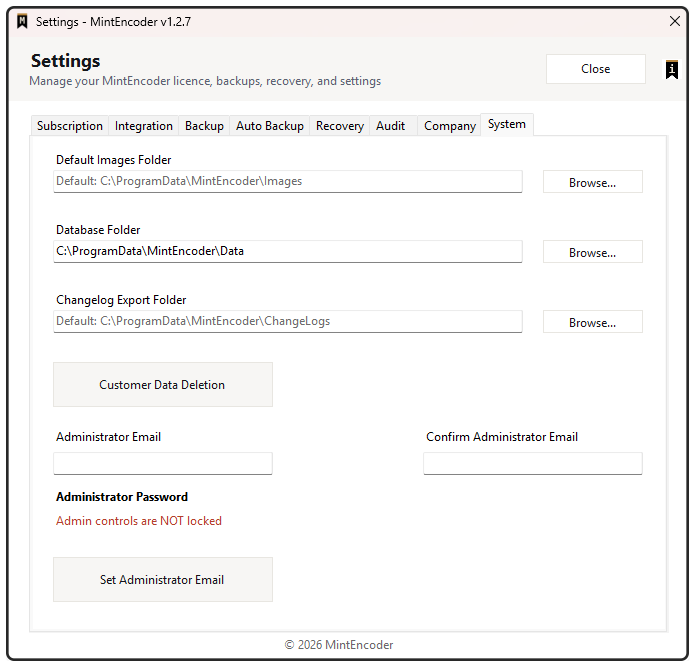
System
The System tab contains global MintEncoder settings that control default file locations, customer data management and Administrator Lock.
-
Default Images Folder
The Default Images Folder determines where MintEncoder looks for product branding images by default. This folder is used when selecting logos and other product-related images from Product Manager.
-
Database Folder
The Database Folder stores the MintEncoder database and supporting files required for normal operation.
⚠ The Database Folder should not be modified while MintEncoder is running.
-
Changelog Export Folder
The Changelog Export Folder determines the default location used when exporting changelog files from Release History.
-
Customer Data Deletion
Customer Data Deletion opens the Customer Data Deletion window, which is used to anonymise customer information for GDPR and privacy-related requests.
-
Administrator Lock
Administrator Lock protects Backup, Auto Backup, Recovery, System and signing key management functions behind a single administrator password. Day-to-day tasks such as licence generation, product management and Audit Log access are not affected. Before Administrator Lock can be enabled, a Recovery Email address must be entered and verified. MintEncoder sends a verification email and the lock cannot be activated until verification has been completed successfully. This prevents a mistyped or inaccessible Recovery Email address from being used to activate Administrator Lock.
-
Password Recovery
If the Administrator Password is forgotten, select Forgot Password? from the unlock prompt. A recovery code is sent to the verified Recovery Email address. Each recovery code can be used once only and only on the computer from which it was requested. If both the Administrator Password and Recovery Email become unavailable, MintEncoder Support may be able to assist through the Administrator Lock recovery process.
-
Automatic Update Checks
MintEncoder performs an automatic licence and update check when the application starts.
This check is used to:
-
Detect newer MintEncoder releases and provide update notifications.
-
Confirm that the installed MintEncoder licence remains in good standing.
A missed or failed check does not affect normal operation. Restrictions are only applied if MintEncoder cannot contact mintencoder.com for 30 consecutive days.
-
Connectivity Failures
If MintEncoder cannot contact mintencoder.com for 30 consecutive days, creation of new products, signing keys and licences is temporarily paused until a successful check is completed.
-
What Remains Available
Even when restrictions are active, existing data remains accessible, including:
-
Products
-
Licence Log
-
Key Manager
-
Audit Log
Full functionality is restored automatically as soon as a successful check is completed.
Customer Data Deletion
When customer data is anonymised:

-
Customer Name
-
Company Name
-
Email Address
-
Notes
-
The stored licence key
-
PDF certificates generated for the licence
Information is preserved:
-
Licence Number and internal licence identifiers
-
Licence status
-
Audit records
-
Order references
Existing Backups
Important
Customer Data Deletion cannot be undone. Anonymised customer information cannot be recovered once the operation has been completed.
FAQ
Will reinstalling Windows affect my signing keys?
Unlicenced: NoLicenced: Yes
Before Reinstalling Windows or Moving to a New Computer
-
Copy the Backup Password from Settings > Backup (View Backup Password).
-
Create a backup. The backup includes the database, database key and MintEncoder licence key.
-
Create and export a Recovery Key.
On the New Computer
-
Install MintEncoder.
-
Restore the Recovery Key.
-
Restore the backup using the Backup Password.
Why do I need a Recovery Key if I already have a database backup?
Unlicenced: NoLicenced: Yes
Signing keys are protected using machine-specific encryption. A database backup preserves the data, but a Recovery Key is required to recover signing keys if the Windows installation or computer is no longer available.
Title Here
Description